
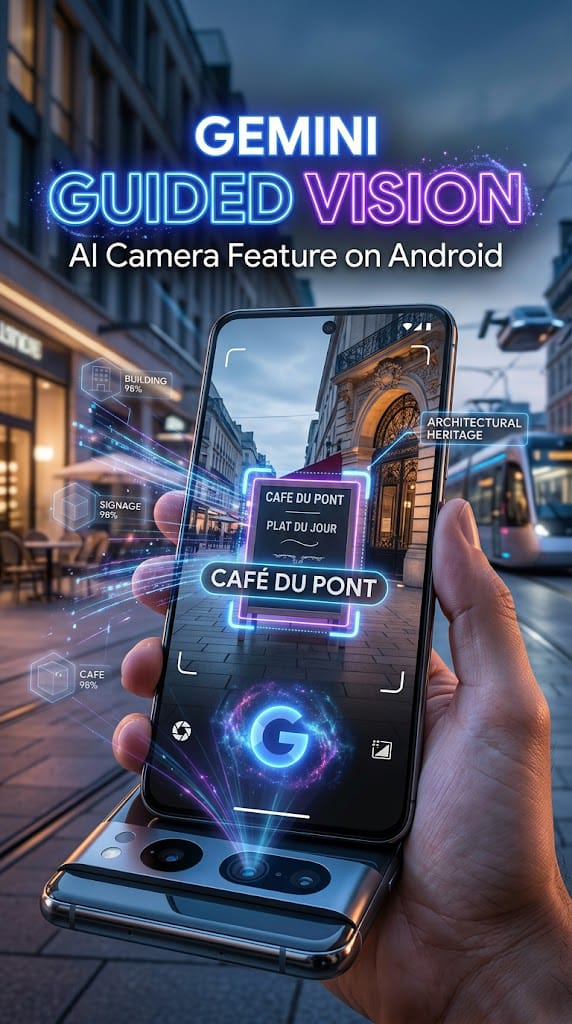
Google has introduced a new AI feature called Guided Vision inside Gemini Live for compatible Android devices. Unlike a completely new Gemini app, Guided Vision is an additional feature that makes Gemini more useful when you point your phone camera at the world around you.
With Guided Vision enabled, Gemini can provide real-time spoken descriptions, help read small text, identify objects, describe colors and shapes, and give voice instructions when your camera needs to be repositioned.
Google launched Guided Vision on October 1, 2026, with a strong focus on accessibility and everyday visual assistance.
What Is Google Gemini Guided Vision?
Google Gemini Guided Vision is a new feature built into Gemini Live.
The Gemini app itself is not being replaced by a completely different application. Instead, Google has added Guided Vision as a new way to use Gemini Live with your phone’s camera.
When you share your camera during a Gemini Live conversation, Gemini can understand what the camera is showing and respond with spoken information.
This means you can point your phone at an object, label, menu, appliance display, or part of a room and ask Gemini questions about it.
What Is Actually New?
The biggest change is not the Gemini app’s icon or overall design. The new experience is about how Gemini uses the camera during Live conversations.
Previously, Gemini Live could already provide natural voice conversations and support camera or screen sharing. Guided Vision adds a more specialized visual-assistance experience, including real-time descriptions and verbal guidance for positioning the camera.
For example, if your camera is pointing too high or is not centered on an object, Guided Vision can tell you to move the camera, pan to the side, tilt it downward, or step back.
That makes the interaction more conversational instead of simply showing Gemini a picture.
Google Gemini Guaided Vision Features
Real-Time Visual Descriptions
Guided Vision can describe what is visible through your phone camera while you are talking with Gemini Live.
You can ask follow-up questions naturally instead of stopping the conversation and taking a separate photo.
Read Small Text
The feature can help read fine print and other difficult-to-read text.
For example, it can assist with:
- Food labels
- Menus
- Appliance displays
- Signs
- Small printed text
Google specifically highlights situations such as reading labels and menus in low-light environments.
Identify and Find Objects
You can ask Gemini to help identify objects around you.
It can also help you locate an object in your immediate surroundings, such as finding an earbud or locating an item inside a crowded cabinet.
Understand Colors, Shapes and Patterns
Guided Vision can describe details such as colors, shapes, and patterns.
For example, you could ask whether a particular shirt has a certain color or pattern.
Camera Reframing Guidance
This is one of the more interesting parts of the new feature.
If the camera is not positioned correctly, Gemini can provide spoken guidance to help you reframe the view.
It can suggest moving the phone, panning across an area, centering an object, or stepping back to provide better visual context.
How to Use Guided Vision on Android?
If the feature is available on your device, you can enable it from the Gemini app.
Follow these steps:
- Open the Gemini app on your Android phone.
- Tap your profile picture or account icon.
- Open Settings.
- Turn on Use Guided Vision in Live.
- Start a Gemini Live conversation.
- Share your phone’s camera.
- Point the camera toward an object or area.
- Ask Gemini what you want to know.
Google says Guided Vision is rolling out gradually, so some eligible users may not see the option immediately.
Android Requirements For Google Gemini Guided Vision Features
Google says Guided Vision is available on Android devices running Android 9 and above in regions and languages where Gemini Live is supported.
Google also recommends keeping the Gemini app and Android system software updated to the latest versions.
The Gemini mobile app itself is available on many Android phones and tablets running Android 9 or later with at least 2 GB of RAM, although individual features can have additional availability requirements.
Guided Vision Accessibility Shortcuts
Google has also added quick-access options for Guided Vision.
Depending on the Android device, users can configure an accessibility shortcut using:
- The floating Accessibility button
- A two-finger swipe gesture
- Both volume keys
- The TalkBack menu
With TalkBack enabled, users can open the TalkBack menu with a three-finger tap and select Guided Vision.
Who Can Benefit From Guided Vision?
Google developed Guided Vision with the blind and low-vision community, making accessibility one of its main purposes.
However, the feature can also be useful for other Android users.
For example, someone might use it to:
- Read tiny text
- Understand an unfamiliar object
- Check a product label
- Find something nearby
- Understand a room or table
- Ask questions about something visible through the camera
Google says the feature can also provide practical visual assistance for older adults and people who have difficulty reading small text.
Is Guided Vision a New Gemini App?
No.
This is an important point.
Google has not launched a completely separate Gemini app called Guided Vision. Guided Vision is a feature inside Gemini Live.
So, if your Gemini app still has the familiar Gemini interface and icon, that does not mean you are using an old version.
The important change is the availability of the new Guided Vision option inside Gemini Live.
Google Gemini Download for Android
If you do not already have Gemini, you can get the official Android app through Google Play:
For users who already have Gemini installed, check the Play Store for an available update and then look inside Gemini settings for the Guided Vision option.
Safety and Important Things to Know
Google Gemini Guided Features is an AI-powered feature, so its descriptions can sometimes be incorrect.
Google specifically warns that Guided Vision is not a medical device, mobility aid, white-cane replacement, navigation tool, or obstacle-detection system. Users should not depend on it for safe travel.
You should also respect other people’s privacy when using the phone camera around them.
Pros and Cons
Pros
- Real-time camera assistance
- Spoken visual descriptions
- Can read small text
- Can identify and locate objects
- Can describe colors and patterns
- Provides camera-position guidance
- Built into Gemini Live
- Designed with accessibility in mind
Cons
- Gradual rollout
- Availability can vary by region and language
- AI can make mistakes
- Requires a compatible Android setup
- Should not be used for navigation or obstacle detection
Frequently Asked Questions
Is Google Gemini Guided Vision Features a new app?
No. Guided Vision is a feature inside Gemini Live rather than a separate Gemini application.
What does Guided Vision do?
It uses the phone camera with Gemini Live to provide spoken descriptions and assistance with things visible around you.
Can Guided Vision read small text?
Yes. It can help read small labels, menus, signs, appliance displays, and other text visible through the camera.
Can Guided Vision find objects?
Yes. You can ask Gemini to help identify or locate objects in your immediate surroundings.
Which Android version is required?
Google says Guided Vision is available on Android 9 and newer devices where Gemini Live is supported.
Why don’t I see Guided Vision in Gemini?
Google is rolling the feature out gradually. It may also depend on your device, region, language, account, and Gemini Live availability.
Conclusion
Google Gemini Guided Vision is not a replacement for the existing Gemini app. Instead, it adds a new visual-assistance experience to Gemini Live.
The main improvement is the way Gemini can interact with the phone camera in real time. Users can ask it to read text, identify objects, describe surroundings, explain colors and patterns, and even provide spoken instructions for repositioning the camera.
For Android users, this makes Gemini Live more useful for everyday visual tasks while also providing an accessibility-focused experience for people who are blind or have low vision.
If Google Gemini Guided Vision Features is available on your device, simply update Gemini, open its settings, enable Use Guided Vision in Live, and start a Gemini Live session with camera sharing.