Tag: APK Guide

  • Procreate for Android: Features, Download Guide, and Best Alternatives 2026

    Procreate for Android: Features, Download Guide, and Best Alternatives 2026

    Introduction

    Procreate is a popular digital art application known for its powerful drawing tools, customizable brushes, and professional painting features. Many artists want to use Procreate for Android because they prefer creating digital artwork on their Android phones and tablets.

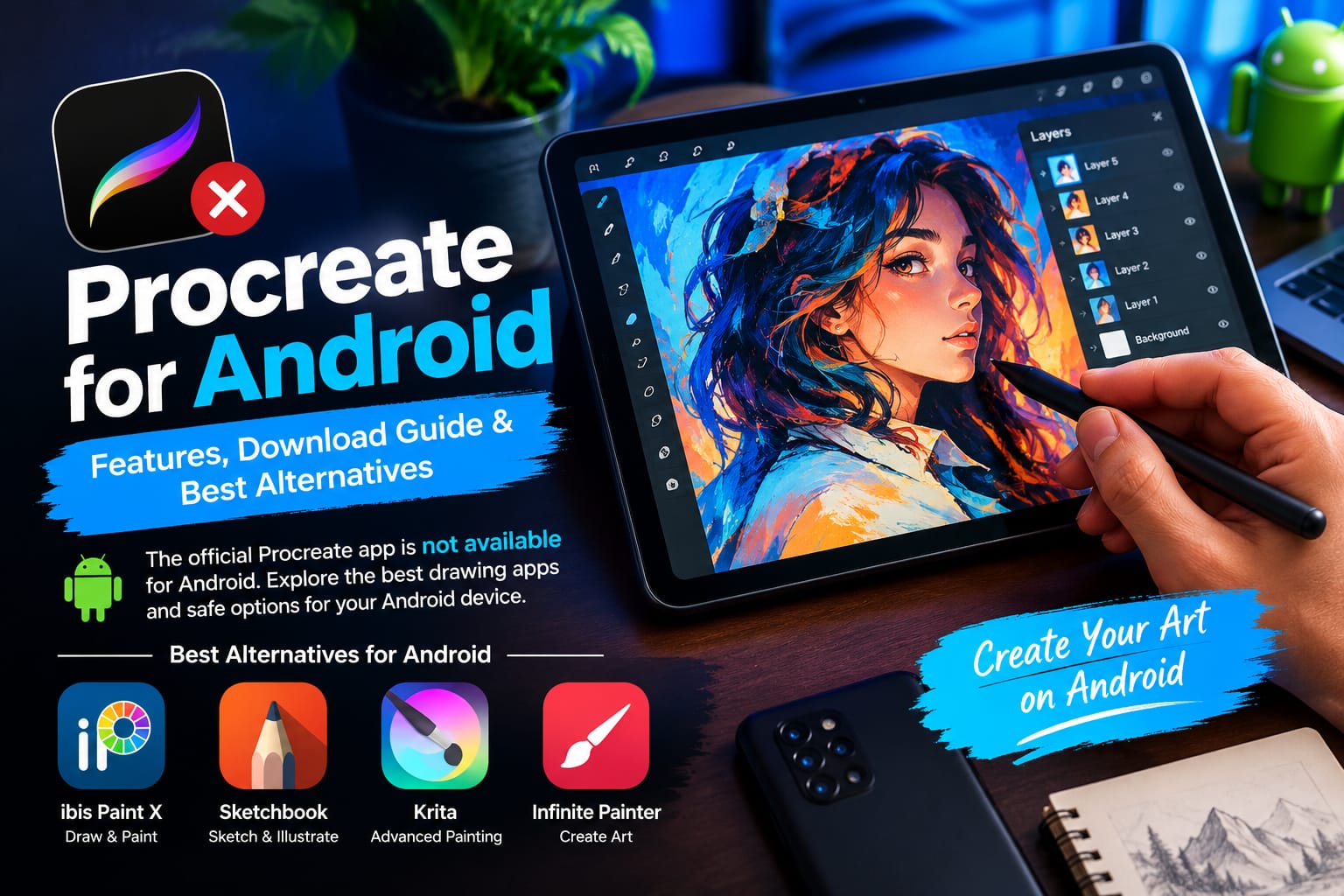
    However, there is one important thing to know before downloading anything: the official Procreate app is designed for iPad, and an official Android version is not available. The developer also offers Procreate Pocket for iPhone. You can check the official website to confirm its available products.

    In this guide, we will explain what Procreate for Android means, explore its main features, discuss safe download options, and introduce some useful alternatives for Android users.

    What Is Procreate for Android?

    Procreate is a digital illustration and painting application developed by Savage Interactive. It allows artists to create sketches, detailed illustrations, paintings, and animations using digital tools.

    The original Procreate app is available for compatible iPads through Apple’s App Store. It includes a wide selection of brushes, layer controls, drawing assistance, and other tools designed for digital artists.

    Many websites use the phrase “Procreate for Android” to describe drawing apps that offer a similar experience. These apps may provide comparable painting tools, but they are not necessarily developed or approved by the official Procreate team.

    Android users should understand this difference before installing an application.

    Key Features of Procreate

    The official iPad version of Procreate includes several features that make it popular among digital artists.

    Customizable Brushes

    Procreate offers a large collection of brushes for different artistic styles. Artists can use pencil-like strokes, ink brushes, painting textures, and other effects to create unique artwork.

    Advanced Layer System

    The app includes tools for selecting, transforming, resizing, and adjusting artwork. Features such as QuickShape and Drawing Assist can help artists create cleaner shapes and smoother lines.

    Animation Features

    Procreate supports simple frame-by-frame animation. Artists can create short animated sequences, GIFs, and other visual projects using compatible export options.

    High-Quality Artwork Export

    Users can export artwork in supported formats such as PNG, JPEG, and PSD. The available formats and export settings depend on the project and the app’s supported features.

    These are features of the official Procreate app, not a guarantee that every Android drawing app offers the same tools.

    Can You Download Procreate for Android?
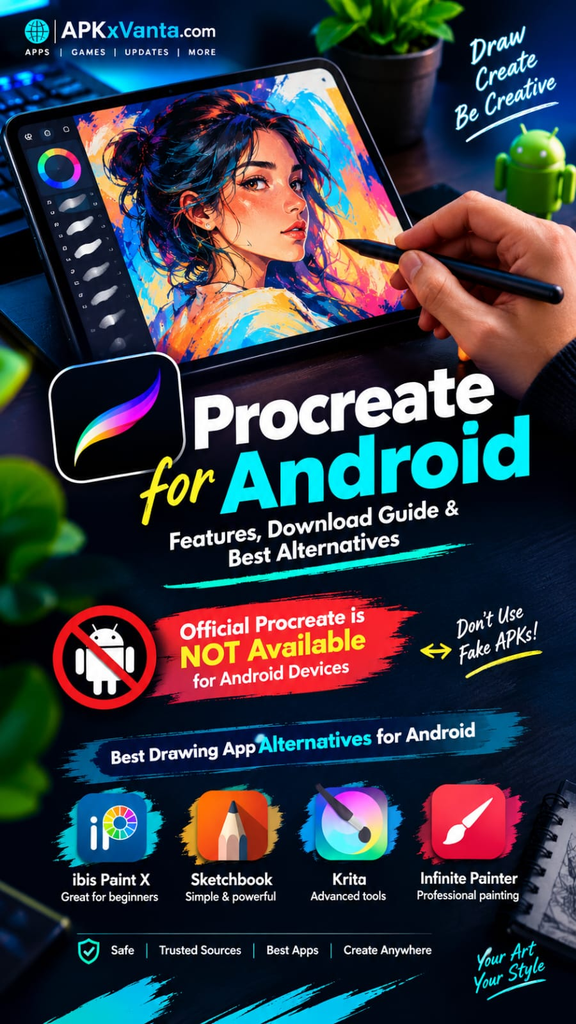
    Currently, the official Procreate app is not available for Android devices. Therefore, you should not expect an official Procreate APK download for Android.

    If a website claims to provide the original Procreate Android APK, verify the claim carefully before downloading anything. A third-party app using the Procreate name does not automatically mean it is the official application.

    The iPad app listing is provided for reference and is not an Android download link.

    If you enjoy exploring popular Android games, check out our complete guide to the [SUBR game] for more details and helpful tips.

    Best Procreate Alternatives for Android

    If you want to draw on an Android phone or tablet, several other applications can help you create digital artwork.

    ibis Paint X

    ibis Paint X is a drawing application that offers brushes, layers, filters, and tools for illustration and manga-style artwork. It can be a useful option for beginners and artists who enjoy drawing on mobile devices.

    Sketchbook

    Sketchbook is a digital drawing application designed for sketching, illustration, and creative work. Its drawing-focused interface makes it worth considering if you want to start with simple sketches and gradually develop your skills.

    Krita

    Krita is a digital painting program known for its extensive brush system and professional illustration tools. It is particularly useful for artists who want more advanced painting controls.

    Krita also has an Android version intended for compatible tablets and Chromebooks. Its interface may feel less comfortable on smaller phone screens.

    Infinite Painter

    Infinite Painter is another drawing and painting option worth exploring. Depending on the version and device, it offers tools for brushes, layers, and digital illustration.

    Which alternative should you choose?

    If you are a beginner, try ibis Paint X or Sketchbook first. If you prefer advanced digital painting and use a compatible tablet, consider Krita or Infinite Painter. Compare their current features, pricing, and device requirements before choosing.

    How to Install a Drawing App on Android

    Follow these simple steps to install an alternative safely:

    1. Open the Google Play Store on your Android phone or tablet.
    2. Search for the drawing application you want to use.
    3. Open its listing and check the developer’s name.
    4. Review the available features, permissions, and device compatibility.
    5. Tap Install if the application meets your requirements.
    6. Open the app and try creating a simple sketch.

    If you download an app from outside Google Play, take extra care to verify its source and authenticity. Avoid unknown APK websites that promise paid features for free.

    Is Procreate for Android Safe?

    The phrase “Procreate for Android” can refer to different third-party applications, so safety depends on the specific app and its developer.

    Before installing a drawing application, follow these precautions:

    • Download apps from trusted sources.
    • Check the developer’s identity and official website.
    • Read recent user reviews and the privacy policy.
    • Avoid modified APKs that promise unlocked premium features.
    • Do not grant unnecessary permissions.
    • Keep Google Play Protect enabled.

    Remember that an app’s presence on a third-party website does not prove that it is safe or officially supported. Google Play Protect can help detect potentially harmful applications, but no security tool guarantees complete protection.

    Pros and Cons of Android Drawing Apps

    Pros

    • Draw and sketch directly on a compatible Android device.
    • Explore different brushes and artistic styles.
    • Create illustrations for social media and personal projects.
    • Choose from free and paid applications.
    • Use a compatible stylus for greater drawing control.

    Cons

    • The original Procreate app is unavailable on Android.
    • Some alternatives have different features and workflows.
    • Advanced tools may require a paid version.
    • Performance can vary depending on your device.
    • Some apps may be less comfortable to use on smaller screens.

    Frequently Asked Questions

    Is Procreate available for Android?

    No. The official Procreate app is designed for iPad. Android users can choose other drawing applications with similar capabilities.

    Is there an official Procreate APK?

    There is no official Android APK for Procreate. Be cautious of websites claiming to offer one.

    What is the best free alternative to Procreate for Android?

    ibis Paint X and Sketchbook are useful starting points. Check their current listings for pricing, free features, and availability in your region.

    Can I use Procreate on an Android tablet?

    The official Procreate app is not available for Android tablets. However, you can use compatible drawing applications such as Krita or Infinite Painter.

    Is Procreate Pocket available for Android?

    No. Procreate Pocket is designed for iPhone, not Android devices.

    Can beginners create professional-looking artwork on Android?

    Yes. With practice, a suitable drawing app, and a compatible stylus, beginners can create detailed illustrations and digital paintings on Android devices.

    Conclusion

    Procreate remains a popular choice for digital artists, but the official app is not available for Android. Instead of downloading an unverified Procreate APK, Android users can explore alternatives such as ibis Paint X, Sketchbook, Krita, and Infinite Painter.

    Choose an application that works with your device, offers the drawing tools you need, and comes from a trustworthy source. This approach will help you start creating digital artwork without relying on unofficial Procreate downloads.

  • How to Sideload Android Apps Safely in 2026: A Practical APK Guide

    How to Sideload Android Apps Safely in 2026: A Practical APK Guide

    Installing an Android app from outside Google Play is known as sideloading. It can be useful when an app is unavailable in your region, when you need an official beta release, or when an older version is no longer listed in the Play Store.

    However, installing an APK from an unknown source can also create security and privacy risks. A modified or repackaged APK may contain unwanted code, excessive permissions, or other security threats.

    The good news is that you can reduce these risks by following a few simple checks before and after installing an APK.

    In this guide, you will learn how to sideload Android apps safely, how to check an APK before installation, what permissions to watch for, and what to do after installing an app.

    How to Sideload Android Apps Safely ?

    Sideloading means installing an Android application without getting it directly through Google Play.

    An Android application may be distributed as an APK file, although newer Android app distribution can also involve other package formats and delivery methods.

    Google Play remains the simplest option for most users because it provides an established distribution and update system. Google also advises users to pay attention to whether an app comes from a trusted developer.

    Sideloading can still have legitimate uses, such as:

    • Installing an app that is not currently available in your region
    • Testing an official beta release
    • Installing an older legitimate version when appropriate
    • Installing an app distributed directly by its developer
    • Testing an application outside Google Play

    The important point is to know where the file came from and whether it can be trusted.

    Is Sideloading Safe?

    Learning how to sideload Android apps safely starts with downloading APK files only from trustworthy sources.

    Sideloading itself is not automatically dangerous. The main risk comes from installing software from an untrusted source.

    A legitimate APK from a trustworthy developer is very different from a random APK that has been modified and uploaded by an unknown person.

    Potential risks include:

    • Malware
    • Spyware
    • Excessive permissions
    • Data theft
    • Fake or repackaged applications
    • Unwanted advertising
    • Account or credential theft
    • Compatibility problems
    • Security vulnerabilities in outdated applications

    That is why you should never treat an APK simply as a harmless file.
    The first step in learning how to sideload Android apps safely is choosing a trustworthy APK source.

    Start With the Official Source

    The safest approach is to find the application’s official developer or publisher first.

    If the developer provides an APK through its official website, that is generally preferable to downloading the same file from an unknown website.

    Before downloading, check:

    • The developer’s name
    • The official website
    • The application’s package name
    • The version number
    • The release information
    • Whether the APK is actually provided by the developer

    Be particularly careful with websites offering “premium unlocked,” “free paid apps,” “mod APK,” or “hacked APK” files.

    These files may have been changed from the original application.

    Check Whether the App Is Available on Google Play

    Before sideloading an APK, search for the app on Google Play.

    If it is available there, using the Play Store is usually the simpler option.

    Google notes that an app may be unavailable because the developer removed it, Google removed it for policy reasons, or the app is incompatible with your device.

    If you cannot find an app on Google Play, don’t immediately assume that a third-party APK is safe.

    First, look for information from the official developer.

    Verify the APK Before Installing It

    One of the most important checks is verifying that the APK has not been tampered with.

    Android applications use digital signatures. Android requires APKs to be digitally signed before they can be installed or updated.

    For advanced users, Google’s Android SDK includes a tool called apksigner. It can verify whether an APK’s signature can be successfully verified.

    For example, advanced users can use:

    “apksigner verify app-name.apk”

    You do not need to use command-line tools if you are a beginner. The important idea is to verify the APK against information supplied by a trustworthy developer whenever that information is available.
    For more information about downloading apps safely, check the official Android Help guide.

    What About SHA-256?

    Some developers publish a SHA-256 checksum for their downloadable files.

    A checksum can help you confirm that the file you downloaded matches the file provided by the developer.

    If the developer publishes a SHA-256 hash, compare it with the downloaded file.

    Do not rely on an unfamiliar website’s claim that an APK is “100% original” when there is no trustworthy way to verify that claim.

    Scan the APK for Malware

    Another useful precaution is scanning an APK before installing it.

    VirusTotal supports scanning Android APK files and uses multiple security engines and other analysis tools to inspect submitted files.

    However, a scan should be treated as one security check, not a guarantee that an APK is completely safe.

    If a scan produces several serious detections, stop and investigate the file instead of installing it.

    Also remember that uploading a file to a public scanning service can have privacy implications because submitted files and analysis information may be stored and shared according to the service’s policies.

    For sensitive or private files, understand the scanning service’s privacy options before uploading anything.

    Check the App’s Permissions

    Permissions can provide useful clues about what an application wants to access.

    Before installing or using a sideloaded app, review the permissions it requests.

    Pay particular attention when an app requests access to:

    • SMS
    • Contacts
    • Phone calls
    • Microphone
    • Camera
    • Location
    • Files and media
    • Accessibility features

    A permission is not automatically malicious. Some legitimate applications genuinely need sensitive permissions to perform their main functions.

    The important question is:

    Does the requested permission make sense for what the app is supposed to do?

    For example, a simple calculator requesting access to SMS messages should make you stop and investigate further.

    Use a Secondary Device for Unknown Apps

    If you need to test an APK and you do not fully trust it, using a secondary Android device can reduce the potential impact on your primary phone.

    This is particularly useful for:

    • Testing applications
    • Development work
    • Beta software
    • Unknown applications that you need to examine

    Do not sign into important accounts on a test device unless you trust the software running on it.

    Keep Your Android Device Updated

    Your phone’s operating system and security updates are an important part of overall security.

    Before experimenting with APKs, make sure your device is reasonably up to date.

    Updates can include security fixes, compatibility improvements and other changes that help protect the device.

    You should also keep important apps updated through trusted sources whenever possible.

    Allow APK Installation Carefully

    Android uses security controls around applications installed from outside the normal Play Store process.

    The exact settings can vary depending on the Android version and phone manufacturer.

    On many Android devices, you may need to allow the particular application you are using to install APK files from an external source.

    The safest approach is to allow this capability only when necessary and review the setting afterward.

    Android’s security model is also evolving. Google has introduced developer-verification protections for apps from unverified developers, with additional rollout requirements beginning in some regions in September 2026.

    Because Android interfaces differ between manufacturers, do not assume that every phone will show exactly the same settings.

    Never Ignore Android’s Security Warnings

    If Android displays a warning before installing an application, don’t automatically tap “Install anyway.”

    Instead, stop and ask:

    • Where did this APK come from?
    • Do I trust the developer?
    • Was the file downloaded from an official source?
    • Does the package name look correct?
    • Has the file been scanned?
    • Does the app really need to be installed outside Google Play?

    If you cannot answer these questions confidently, it is better not to install the APK.

    Watch the App After Installation

    Your security checks should not stop after installation.

    Pay attention to unusual behavior such as:

    • Unexpected pop-ups
    • Excessive battery usage
    • Unusual mobile-data consumption
    • Apps opening without your action
    • Unknown notifications
    • Unexpected permission requests
    • Slow performance
    • Strange account activity

    If an application behaves suspiciously, uninstall it and review the permissions and accounts that may have been exposed.

    If you entered an important password into a suspicious application, consider changing that password from a trusted device.

    Common APK Sideloading Mistakes

    Many problems happen because users rush through the installation process.

    Here are some common mistakes to avoid.

    Downloading From Random Websites

    A search result does not automatically mean the website is trustworthy.

    Always investigate the source before downloading an APK.

    Installing Modded or Cracked Apps

    Modified APKs can be especially risky because you cannot easily know what was changed.

    Avoid cracked applications, unauthorized premium unlocks, cheats and other suspicious packages.

    Ignoring Permissions

    An application asking for unnecessary access should be investigated before installation.

    Assuming a Virus Scan Means 100% Safety

    Security scanners are useful, but no single scan should be treated as an absolute guarantee.

    Keeping an Old APK Forever

    Older versions may miss important security fixes. If you install an older version for a legitimate reason, check whether a trusted newer version is available later.

    A Simple Safe APK Checklist

    Before installing an APK, ask yourself these questions:

    Is the source trustworthy?

    Check the official developer or publisher first.

    Is the app available through Google Play?

    If yes, consider using Google Play instead.

    Can I verify the APK?

    Check the developer’s signature or published SHA-256 information when available.

    Did I scan the file?

    Use a reputable security scanner as an additional check.

    Do the permissions make sense?

    Reject suspicious permission requests.

    Is my Android device updated?

    Install available security updates before experimenting with unknown software.

    Do I really need this APK?

    If you cannot establish a good reason and trustworthy source, don’t install it.

    Sideloading vs Google Play

    Feature| Google Play| Sideloading
    Easy installation| Yes| Usually requires extra steps
    Official distribution| Usually| Depends on source
    Automatic updates| Generally supported| Depends on installation source
    Security checks| Built into Google’s ecosystem| More responsibility for the user
    Regional availability| Can vary| May provide another legitimate distribution route
    Risk from unknown files| Lower when using trusted apps| Higher if the source is unknown

    For most users, Google Play is the easier choice. Sideloading makes more sense when there is a legitimate reason to install software outside the Play Store.

    Is It Legal to Sideload an APK?

    Sideloading itself is not a simple “legal or illegal” question that applies identically to every APK.

    The important issue is what application you are downloading and where it came from.

    Installing an APK distributed legitimately by its developer is different from downloading a pirated paid application.

    Avoid using APKs to bypass payment, licensing restrictions or copyright protections.

    When in doubt, use the official distribution channel provided by the developer.

    Frequently Asked Questions

    What does sideloading mean on Android?

    Sideloading means installing an Android application from outside the normal Google Play installation process, commonly using an APK file.

    Is it safe to install APK files?

    An APK is not automatically safe or unsafe. The source, authenticity, permissions and behavior of the application all matter. Downloading from an unknown source increases the risk.

    How can I check an APK before installing it?

    Check the source, developer information, digital signature and, when provided by the developer, the SHA-256 checksum. You can also scan the APK with a reputable security service.

    Is VirusTotal enough to prove an APK is safe?

    No. VirusTotal can provide useful detection results from multiple security engines, but a clean result should not be treated as an absolute guarantee.

    Should I install mod APKs?

    It is safer to avoid unauthorized modified, cracked or hacked APKs. You generally cannot know what changes have been made to the original application.

    Should I use Google Play instead of an APK?

    For most users, yes. Google Play provides a simpler and more established installation and update experience. Sideloading can be useful when there is a legitimate reason to obtain an app elsewhere.

    Can an APK steal personal information?

    A malicious application can potentially abuse permissions or exploit vulnerabilities to access sensitive information. This is why source verification, permissions review and device security are important.

    What should I do if I installed a suspicious APK?

    Disconnect the app from sensitive permissions, uninstall it if appropriate, review your device for unusual activity, and change important passwords from a trusted device if you believe your credentials may have been exposed.

    Final Thoughts

    Sideloading can be useful, but it should never be treated as a shortcut where security checks are unnecessary.

    The safest approach is simple: use a trustworthy source, verify the APK when possible, scan it as an additional precaution, review its permissions, keep Android updated, and avoid suspicious modified or cracked applications.

    If an APK comes from an unknown source and you cannot verify who created it or what has been changed, the safest decision is not to install it.

    For everyday Android users, Google Play remains the easiest option. When you have a legitimate reason to sideload an application, knowing how to sideload Android apps safely can help you avoid unnecessary security risks.