Your Android phone may already have a good camera, but the right camera app can give you more control over how your photos look. From manual exposure and focus controls to HDR, night photography, RAW capture, and advanced editing, Android camera apps can offer features that are not always available in a phone’s default camera.
Whether you use a Google Pixel, Samsung Galaxy, OnePlus, Motorola, Xiaomi, or another Android phone, there are camera apps designed for different photography needs.
In this guide, we’ll explore the best Android camera apps for better photos in 2026, what makes each one useful, which type of photographer it suits, and what you should check before installing a third-party camera app.
Quick Comparison of the Best Android Camera Apps
| Camera App | Best For | Manual Controls | Editing |
|---|---|---|---|
| Google Camera | Pixel photography | Limited/automatic | Basic |
| Open Camera | Manual controls | Yes | Limited |
| Camera FV-5 | Photography enthusiasts | Yes | Limited |
| ProShot | Advanced camera controls | Yes | Limited |
| Lightroom Mobile | Capture + editing | Yes on supported devices | Excellent |
Important: Features and compatibility can vary by Android phone, camera hardware, Android version, and app version.
What Is a Camera App?
A camera app is software that controls your phone’s camera hardware and provides the interface you use to take photos or record video.
Most Android phones come with a manufacturer camera app. Samsung phones, for example, have Samsung’s own camera software, while Google Pixel phones use Google’s camera software.
Third-party camera apps can provide another way to use the same camera hardware. Depending on the application and device, you may get additional controls for exposure, ISO, focus, shutter speed, white balance, RAW photography, or other functions.
However, installing a different camera app does not automatically make the physical camera sensor better. Your phone’s hardware still plays a major role in image quality.
1. Google Camera
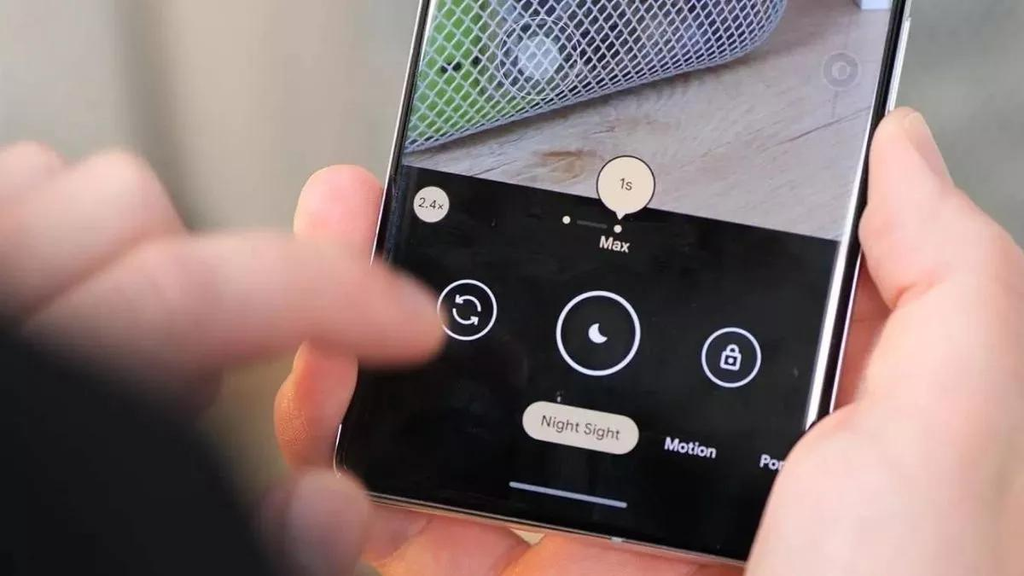
Google Camera is one of the most recognizable camera applications in the Android ecosystem, particularly among Google Pixel users.
On supported Pixel devices, Google’s camera software combines the phone’s camera hardware with Google’s image-processing technology. This can make everyday photography simple because much of the processing happens automatically.
Key Features
Depending on the device and software version, Google Camera can offer features such as:
- HDR photography
- Night photography
- Portrait photography
- Panorama
- Video recording
- Automatic exposure adjustments
- Computational photography features
Who Is It Best For?
Google Camera is particularly relevant to Pixel owners who want a straightforward point-and-shoot experience.
Instead of manually adjusting every setting, you can generally rely on automatic processing and concentrate on framing your subject.
Compatibility
This is an important point.
Google Camera is officially associated with supported Google devices, so you should not assume that every version will work correctly on every Android phone.
If you have a non-Pixel phone, compatibility with unofficial ports can vary considerably. Always check the source, device compatibility, and permissions before installing anything.
2. Open Camera
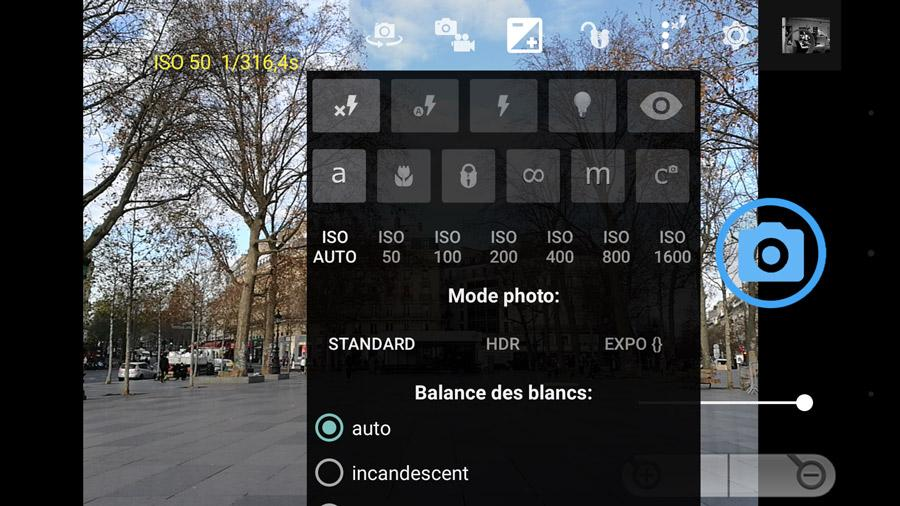
Open Camera is a popular option for Android users who want more control over photography without needing a complicated professional setup.
The application focuses heavily on camera controls and practical features.
Depending on your device, Open Camera may provide controls and options such as:
- Manual focus
- Exposure compensation
- ISO
- White balance
- Scene modes
- Timer
- Burst photography
- Grid overlays
- Video recording
- Different aspect ratios
The exact functionality depends on what your phone’s camera hardware and Android camera APIs support.
Why Choose Open Camera?
One of its biggest advantages is flexibility.
If you feel that your default camera application hides too many settings, Open Camera can give you a more hands-on photography experience.
It is also open-source, which makes it attractive to users who prefer software with publicly available source code.
Best For
Best for: Android users who want manual controls and a lightweight photography application.
3. Camera FV-5
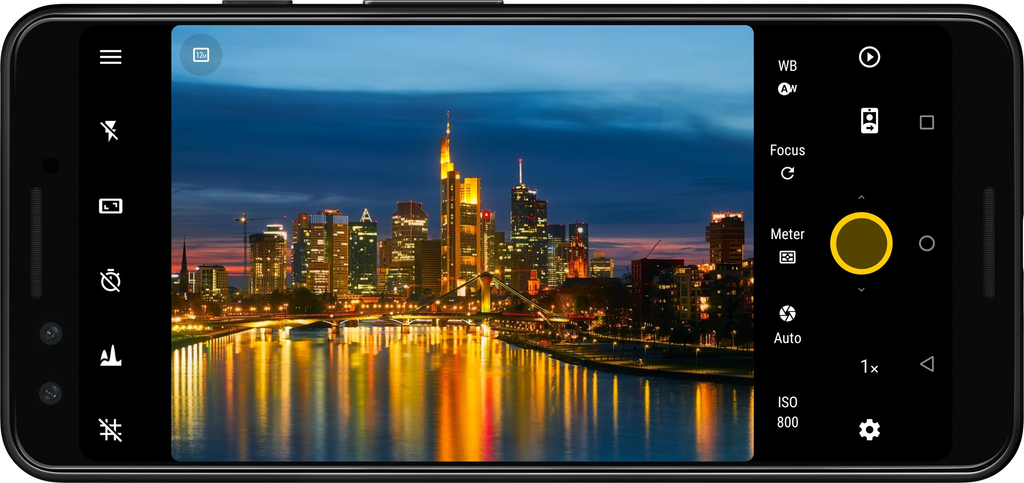
Camera FV-5 is aimed more toward photography enthusiasts who want a DSLR-style experience on Android.
Instead of relying entirely on automatic settings, the application is designed around giving users greater control over the photography process.
Depending on device support, features may include controls for:
- ISO
- Exposure
- Focus
- White balance
- Shutter speed
- Exposure compensation
- Image formats
Who Should Use Camera FV-5?
This type of camera app is more useful if you already understand basic photography concepts or want to learn them.
For example, changing shutter speed can affect how motion appears in a photo, while ISO can affect brightness and image noise.
Things to Remember
Camera apps cannot override every hardware limitation.
If your phone does not expose a particular camera feature through its hardware or Android software, a third-party app may not be able to provide it.
4. ProShot
ProShot is designed for Android users who want a more advanced camera interface.
It focuses on manual photography and video controls, making it different from simple point-and-shoot applications.
Depending on the device, ProShot can provide controls related to:
- ISO
- Shutter speed
- Focus
- Exposure
- White balance
- Photo formats
- Video recording
Why Consider ProShot?
For photography enthusiasts, having manual controls available in one interface can make it easier to experiment with different shooting techniques.
You can manually adjust settings rather than allowing the phone to make every decision automatically.
Best For
Best for: Users who want a more professional-style camera experience on Android.
Keep in mind that ProShot is a premium application, so check its current price and device compatibility before purchasing.
5. Adobe Lightroom Mobile
Adobe Lightroom is best known for photo editing, but its mobile application can also provide camera functionality on supported devices.
This makes Lightroom interesting for people who want to capture a photo and immediately move into an editing workflow.
Lightroom Camera Features
Depending on your device and current application version, Lightroom may provide features such as:
- Camera controls
- Exposure adjustments
- RAW capture on supported devices
- Different shooting modes
- Editing tools
- Presets
- Color adjustments
Lightroom Editing
The editing side is where Lightroom becomes particularly useful.
You can adjust:
- Exposure
- Contrast
- Highlights
- Shadows
- White balance
- Saturation
- Color
- Sharpness
- Crop and composition
This makes Lightroom a strong option for users who want to do more than simply capture photos.
Best For
Best for: Android users who want photography and powerful editing tools in one workflow.
How to Choose the Best Android Camera App
There isn’t one camera app that is perfect for every Android user.
The right choice depends on your phone, photography experience, and the features you actually need.
If You Want Simple Photography
If you mostly photograph family moments, pets, food, travel, or everyday events, you may not need an advanced manual camera.
A good automatic camera can save time and make photography easier.
In many cases, your phone’s default camera app may already provide everything you need.
If You Want Manual Controls
Look for applications that offer controls such as:
- ISO
- Shutter speed
- Manual focus
- Exposure compensation
- White balance
These settings give you more control over the final photograph.
If You Take Night Photos
Night photography is one of the areas where smartphone software can make a noticeable difference.
Look for a camera app that supports an appropriate low-light mode on your device.
However, remember that night photography also depends heavily on your phone’s sensor, lens, stabilization, and image-processing hardware.
If You Edit Photos Frequently
If you take photos and then spend time adjusting colors, exposure, shadows, and highlights, a camera-and-editor combination can be more convenient.
Lightroom is one example of an application that combines capture and editing capabilities.
Can Camera Apps Actually Improve Photo Quality?
Yes, but there is an important limitation.
A camera app can sometimes improve the way your phone captures or processes an image, but it cannot physically upgrade your camera sensor or lens.
For example, a camera application may give you better control over exposure or focus. It may also provide features that your default application does not expose.
But final image quality is still affected by:
- Camera sensor
- Lens quality
- Image stabilization
- Image processor
- Android camera support
- Lighting conditions
- Photography technique
This is why the same camera app can produce different results on two different Android phones.
How to Take Better Photos With Android
Even the best Android camera app cannot compensate for poor lighting or bad composition.
Here are some simple techniques that can make your photos better.
1. Clean Your Camera Lens
This sounds simple, but it matters.
Fingerprints, dust, and oil on the lens can reduce contrast and make photos appear hazy.
Use a soft microfiber cloth to gently clean your camera lens before taking important photos.
2. Use Natural Light
Good lighting is one of the easiest ways to improve smartphone photography.
Whenever possible, use soft natural light instead of extremely harsh lighting.
For portraits, placing your subject near a window can often produce better results than using a strong flash.
3. Keep Your Phone Steady
Camera shake can cause blurry photographs, especially in low-light conditions.
Hold your phone with both hands and keep your arms close to your body.
For night photography or long exposures, a tripod can provide even more stability.
4. Avoid Excessive Digital Zoom
Digital zoom can reduce detail because the image is effectively being cropped or digitally enlarged.
If your phone has a dedicated telephoto camera, use it when appropriate.
Otherwise, physically moving closer to your subject may produce a better result.
5. Use the Rule of Thirds
Many camera applications include a grid option.
Turn it on and experiment with placing your subject along the grid lines or intersections.
This can help you create more balanced compositions.
6. Experiment With Exposure
If your camera app supports exposure compensation, try adjusting it when your subject looks too bright or too dark.
This is especially useful when the scene contains very bright and very dark areas.
7. Learn Manual Focus
Manual focus can be useful when the automatic system focuses on the wrong object.
It can also help when photographing close-up subjects or scenes where you want a specific object to be sharp.
Are Third-Party Android Camera Apps Safe?
Safety should be an important part of choosing any Android application.
A camera app normally needs camera access because that is its primary function. Depending on its features, it may also need access to photos, videos, or storage.
However, you should pay attention to permissions that appear unrelated to the application’s purpose.
Before Installing a Camera App
Check:
- Developer or publisher information
- App permissions
- User reviews
- Update history
- Official download source
- Compatibility with your Android version
Avoid installing modified APK files from unknown websites simply because they promise paid features for free.
Modified applications can introduce security, privacy, or stability risks.
For important devices, downloading applications through reputable official sources is generally the safer approach.
Should You Use an APK Version of a Camera App?
If an official version is available through Google Play or the developer’s official website, that should generally be your first choice.
Third-party APK files can be useful in some situations, such as when a legitimate application is unavailable in a particular region or when a developer officially distributes an APK outside Google Play.
But users should verify the source carefully.
Do not assume that every APK found online is safe simply because it has the same application name.
Android Camera Apps vs Default Camera Apps
Your phone’s built-in camera application has one major advantage: it is usually optimized specifically for your phone’s hardware.
That means it may have access to manufacturer-specific image processing, lenses, sensors, and camera modes.
Third-party camera apps can provide additional controls, but compatibility may not always be perfect.
For this reason, you don’t necessarily have to replace your default camera.
A useful approach is to keep your default camera for quick everyday photos and use another camera app when you need specific manual controls.
What Should You Look For in a Camera App in 2026?
Before installing a new Android camera app, consider these factors:
Compatibility
Make sure the application supports your Android version and phone model.
Camera Features
Look for the features you actually need rather than choosing an app simply because it has a long feature list.
Performance
A camera app should open quickly and respond smoothly when you are trying to capture a moment.
Permissions
Review the permissions requested by the application.
Updates
An actively maintained application is generally preferable because Android versions and device hardware continue to change.
Privacy
Read the application’s privacy information and understand how your data is handled.
Frequently Asked Questions
What is the best Android camera app for better photos?
The answer depends on your phone and photography needs. Pixel users can consider Google’s camera software, while users looking for manual controls can explore applications such as Open Camera, Camera FV-5, and ProShot.
Is Open Camera free?
Open Camera is available as a free Android camera application. Its available features can vary depending on the phone and Android version.
Can a camera app improve my phone camera?
A camera application can provide additional controls and software features, but it cannot physically upgrade your phone’s camera sensor or lens.
Which Android camera app is best for manual controls?
Applications such as Open Camera, Camera FV-5, and ProShot are designed for users who want greater manual control. The exact controls available depend on the device.
Is Google Camera available on every Android phone?
Google’s official camera application is primarily associated with supported Google devices. Compatibility with other phones can vary, particularly with unofficial versions or ports.
Are third-party camera apps safe?
Many legitimate third-party camera apps are available, but users should check the developer, permissions, reviews, updates, and download source before installing an application.
Do I need a camera app if my phone already has one?
Not necessarily. Your default camera may already be well optimized for your phone. A third-party app is mainly useful when you want features or controls that your default application does not provide.
If you enjoy discovering useful apps for your Android phone, check out our guide to the Best Android Apps for more helpful tools, productivity apps, entertainment options, and everyday utilities.
Final Verdict
The best Android camera apps in 2026 depend on what you want from your phone’s camera.
For straightforward photography, your built-in camera may be all you need. For more control, Open Camera, Camera FV-5, and ProShot offer features aimed at photography enthusiasts. Lightroom is particularly useful if editing is an important part of your workflow, while Google Camera is especially relevant to supported Pixel devices.
Before installing anything, check compatibility and permissions and use a trustworthy download source.
Most importantly, remember that a great photograph is not only about the camera application. Lighting, composition, stability, focus, and knowing how to use your phone’s camera all matter.
With the right camera app and a few simple photography techniques, your Android phone can become a much more capable photography tool in 2026.