Tag: AI Apps

  • Google Gemini Guided Vision: New Camera AI Feature Explained for Android Users 2026

    Google Gemini Guided Vision: New Camera AI Feature Explained for Android Users 2026

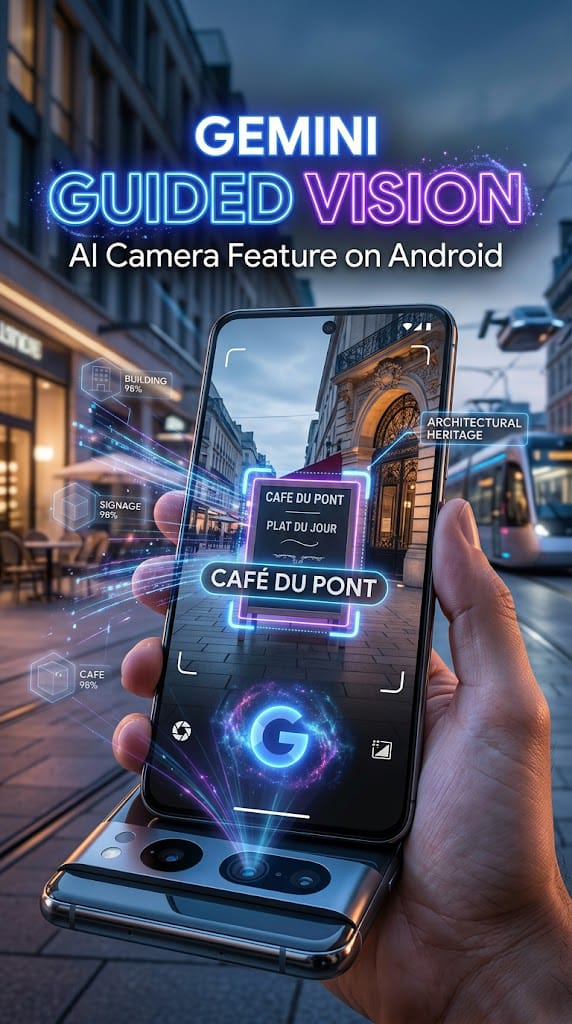
    Google has introduced a new AI feature called Guided Vision inside Gemini Live for compatible Android devices. Unlike a completely new Gemini app, Guided Vision is an additional feature that makes Gemini more useful when you point your phone camera at the world around you.

    With Guided Vision enabled, Gemini can provide real-time spoken descriptions, help read small text, identify objects, describe colors and shapes, and give voice instructions when your camera needs to be repositioned.

    Google launched Guided Vision on October 1, 2026, with a strong focus on accessibility and everyday visual assistance.

    What Is Google Gemini Guided Vision?

    Google Gemini Guided Vision is a new feature built into Gemini Live.

    The Gemini app itself is not being replaced by a completely different application. Instead, Google has added Guided Vision as a new way to use Gemini Live with your phone’s camera.

    When you share your camera during a Gemini Live conversation, Gemini can understand what the camera is showing and respond with spoken information.

    This means you can point your phone at an object, label, menu, appliance display, or part of a room and ask Gemini questions about it.

    What Is Actually New?

    The biggest change is not the Gemini app’s icon or overall design. The new experience is about how Gemini uses the camera during Live conversations.

    Previously, Gemini Live could already provide natural voice conversations and support camera or screen sharing. Guided Vision adds a more specialized visual-assistance experience, including real-time descriptions and verbal guidance for positioning the camera.

    For example, if your camera is pointing too high or is not centered on an object, Guided Vision can tell you to move the camera, pan to the side, tilt it downward, or step back.

    That makes the interaction more conversational instead of simply showing Gemini a picture.

    Google Gemini Guaided Vision Features

    Real-Time Visual Descriptions

    Guided Vision can describe what is visible through your phone camera while you are talking with Gemini Live.

    You can ask follow-up questions naturally instead of stopping the conversation and taking a separate photo.

    Read Small Text

    The feature can help read fine print and other difficult-to-read text.

    For example, it can assist with:

    • Food labels
    • Menus
    • Appliance displays
    • Signs
    • Small printed text

    Google specifically highlights situations such as reading labels and menus in low-light environments.

    Identify and Find Objects

    You can ask Gemini to help identify objects around you.

    It can also help you locate an object in your immediate surroundings, such as finding an earbud or locating an item inside a crowded cabinet.

    Understand Colors, Shapes and Patterns

    Guided Vision can describe details such as colors, shapes, and patterns.

    For example, you could ask whether a particular shirt has a certain color or pattern.

    Camera Reframing Guidance

    This is one of the more interesting parts of the new feature.

    If the camera is not positioned correctly, Gemini can provide spoken guidance to help you reframe the view.

    It can suggest moving the phone, panning across an area, centering an object, or stepping back to provide better visual context.

    How to Use Guided Vision on Android?

    If the feature is available on your device, you can enable it from the Gemini app.

    Follow these steps:

    1. Open the Gemini app on your Android phone.
    2. Tap your profile picture or account icon.
    3. Open Settings.
    4. Turn on Use Guided Vision in Live.
    5. Start a Gemini Live conversation.
    6. Share your phone’s camera.
    7. Point the camera toward an object or area.
    8. Ask Gemini what you want to know.

    Google says Guided Vision is rolling out gradually, so some eligible users may not see the option immediately.

    Android Requirements For Google Gemini Guided Vision Features

    Google says Guided Vision is available on Android devices running Android 9 and above in regions and languages where Gemini Live is supported.

    Google also recommends keeping the Gemini app and Android system software updated to the latest versions.

    The Gemini mobile app itself is available on many Android phones and tablets running Android 9 or later with at least 2 GB of RAM, although individual features can have additional availability requirements.

    Guided Vision Accessibility Shortcuts

    Google has also added quick-access options for Guided Vision.

    Depending on the Android device, users can configure an accessibility shortcut using:

    • The floating Accessibility button
    • A two-finger swipe gesture
    • Both volume keys
    • The TalkBack menu

    With TalkBack enabled, users can open the TalkBack menu with a three-finger tap and select Guided Vision.

    Who Can Benefit From Guided Vision?

    Google developed Guided Vision with the blind and low-vision community, making accessibility one of its main purposes.

    However, the feature can also be useful for other Android users.

    For example, someone might use it to:

    • Read tiny text
    • Understand an unfamiliar object
    • Check a product label
    • Find something nearby
    • Understand a room or table
    • Ask questions about something visible through the camera

    Google says the feature can also provide practical visual assistance for older adults and people who have difficulty reading small text.

    Is Guided Vision a New Gemini App?
    No.

    This is an important point.

    Google has not launched a completely separate Gemini app called Guided Vision. Guided Vision is a feature inside Gemini Live.

    So, if your Gemini app still has the familiar Gemini interface and icon, that does not mean you are using an old version.

    The important change is the availability of the new Guided Vision option inside Gemini Live.

    Google Gemini Download for Android

    If you do not already have Gemini, you can get the official Android app through Google Play:

    Google Gemini on Google Play

    For users who already have Gemini installed, check the Play Store for an available update and then look inside Gemini settings for the Guided Vision option.

    Safety and Important Things to Know

    Google Gemini Guided Features is an AI-powered feature, so its descriptions can sometimes be incorrect.

    Google specifically warns that Guided Vision is not a medical device, mobility aid, white-cane replacement, navigation tool, or obstacle-detection system. Users should not depend on it for safe travel.

    You should also respect other people’s privacy when using the phone camera around them.

    Pros and Cons

    Pros

    • Real-time camera assistance
    • Spoken visual descriptions
    • Can read small text
    • Can identify and locate objects
    • Can describe colors and patterns
    • Provides camera-position guidance
    • Built into Gemini Live
    • Designed with accessibility in mind

    Cons

    • Gradual rollout
    • Availability can vary by region and language
    • AI can make mistakes
    • Requires a compatible Android setup
    • Should not be used for navigation or obstacle detection

    Frequently Asked Questions

    Is Google Gemini Guided Vision Features a new app?

    No. Guided Vision is a feature inside Gemini Live rather than a separate Gemini application.

    What does Guided Vision do?

    It uses the phone camera with Gemini Live to provide spoken descriptions and assistance with things visible around you.

    Can Guided Vision read small text?

    Yes. It can help read small labels, menus, signs, appliance displays, and other text visible through the camera.

    Can Guided Vision find objects?

    Yes. You can ask Gemini to help identify or locate objects in your immediate surroundings.

    Which Android version is required?

    Google says Guided Vision is available on Android 9 and newer devices where Gemini Live is supported.

    Why don’t I see Guided Vision in Gemini?

    Google is rolling the feature out gradually. It may also depend on your device, region, language, account, and Gemini Live availability.

    Conclusion

    Google Gemini Guided Vision is not a replacement for the existing Gemini app. Instead, it adds a new visual-assistance experience to Gemini Live.

    The main improvement is the way Gemini can interact with the phone camera in real time. Users can ask it to read text, identify objects, describe surroundings, explain colors and patterns, and even provide spoken instructions for repositioning the camera.

    For Android users, this makes Gemini Live more useful for everyday visual tasks while also providing an accessibility-focused experience for people who are blind or have low vision.

    If Google Gemini Guided Vision Features is available on your device, simply update Gemini, open its settings, enable Use Guided Vision in Live, and start a Gemini Live session with camera sharing.

  • ChatGPT Android App in 2026: Features, How to Download & Best Ways to Use It

    ChatGPT Android App in 2026: Features, How to Download & Best Ways to Use It

    Artificial intelligence has become a useful part of everyday life, and the ChatGPT Android app makes it possible to access an AI assistant directly from an Android phone.

    Whether you want help writing something, understanding a difficult topic, brainstorming ideas, working with images, asking questions, or having a voice conversation, ChatGPT can be used for many different tasks.

    The official Android app is published by OpenAI and is available through the Google Play Store. The current Google Play listing shows more than 1 billion downloads and a 4.8-star rating, making it one of the most widely used AI apps on Android.

    In this guide, we will explain the ChatGPT Android app, its main features, how to download it safely, how to use it, and some practical tips for getting better results.

    What Is the ChatGPT Android App?

    The ChatGPT Android app is the official mobile application from OpenAI that brings ChatGPT to Android smartphones and tablets.

    Instead of opening a browser every time you want to use ChatGPT, you can install the official application and access your conversations directly from your Android device.

    The app can be used for many everyday tasks, including:

    • Answering questions
    • Writing and rewriting text
    • Learning and studying
    • Brainstorming ideas
    • Summarizing information
    • Translating text
    • Generating images
    • Working with uploaded photos
    • Voice conversations
    • Research and information gathering
    • Planning and organization

    The official Google Play listing identifies OpenAI as the developer and provides the app through Google Play.

    Why Is the ChatGPT Android App Popular in 2026?

    One reason for the popularity of the ChatGPT Android app is convenience.

    Android users can access an AI assistant without needing to sit in front of a computer. You can ask a question while studying, prepare a message, brainstorm an idea, or work through a problem directly from your phone.

    The app has also expanded beyond simple text conversations. According to its current Google Play listing, features include image generation, Advanced Voice Mode, photo uploads, and other AI capabilities.

    Another advantage is synchronization. OpenAI’s official Android FAQ explains that users can access their chat history through the app, making it easier to continue conversations.

    ChatGPT Android App Features

    The ChatGPT Android app provides several useful features. Availability can vary depending on your account, plan, device, and region, so not every user will necessarily see exactly the same tools.

    AI Chat

    The basic feature is conversational AI.

    You can type a question or request and receive a response. You can ask follow-up questions to continue the same conversation rather than starting over each time.

    For example, you can ask:

    “Explain photosynthesis in simple words.”

    Then you can follow up with:

    “Give me five important points for an exam.”

    This makes the conversation useful for learning and research.

    Image Generation

    The current Android listing includes image generation capabilities. Users can describe an image they want to create, and ChatGPT can generate an image based on the request.

    This can be useful for:

    • Creative projects
    • Brainstorming
    • Visual concepts
    • Social media ideas
    • Educational illustrations
    • Design inspiration

    The exact availability and limits of image generation can depend on the account and current product availability.

    Advanced Voice Mode

    The ChatGPT Android app also supports voice interaction.

    The Google Play listing describes Advanced Voice Mode as a way to have a real-time conversation with ChatGPT.

    Voice interaction can be useful when:

    • Your hands are busy
    • You want to practise speaking
    • You prefer talking instead of typing
    • You want a more natural conversation

    For language learners, voice conversations can also provide a convenient way to practise everyday communication.

    Photo Uploads

    You can upload or capture an image and ask ChatGPT about it.

    For example, a user might upload:

    • A handwritten note
    • A document
    • A diagram
    • A product label
    • A screenshot
    • A photograph

    The official Google Play listing gives examples such as transcribing a handwritten recipe or getting information about a landmark.

    Always avoid uploading highly sensitive personal information unless you understand the relevant privacy settings and have a legitimate reason to do so.

    Chat History

    The ChatGPT Android app allows users to access previous conversations.

    OpenAI’s Android FAQ explains that users can open the sidebar to view past chats and use search to find specific words or conversations.

    This is useful when you want to return to an earlier project, study discussion, writing task, or research conversation.

    Screen Sharing

    The current Google Play listing also mentions screen sharing with Accessibility Services in limited availability. This allows eligible users to let ChatGPT help answer questions about screen details without necessarily uploading a screenshot.

    Because this feature involves access to what appears on your screen, users should understand the permissions involved before enabling it.

    If you are interested in AI tools for Android, you can also read our guide to the latest AI apps for Android.

    How to Download the Official ChatGPT Android App?

    The safest way to download the ChatGPT Android app is through the official Google Play Store.

    Open Google Play and search for:

    OpenAI ChatGPT

    Then check that the developer is:

    OpenAI

    OpenAI’s official Android FAQ specifically recommends checking that the app is published by OpenAI before installing it.

    Official Google Play Download:Download ChatGPT for Android from Google Play

    Do not download modified or unofficial versions simply because they claim to provide premium features for free.

    The official Google Play listing identifies the package as “com.openai.chatgpt” and the developer as OpenAI.

    How to Install ChatGPT on Android?

    Installing the official application is straightforward.

    Step 1: Open Google Play Store

    Launch the Google Play Store on your Android device.

    Step 2: Search for ChatGPT

    Search for OpenAI ChatGPT.

    Step 3: Check the Developer

    Before installing, make sure the developer is OpenAI.

    Step 4: Tap Install

    Select the official application and tap Install.

    Step 5: Open the App

    After installation, open ChatGPT from your app drawer or Google Play Store.

    Step 6: Sign In

    Follow the on-screen instructions to sign in or create an account.

    OpenAI’s official documentation confirms that the official Android app can be installed through Google Play and recommends checking the publisher before downloading.

    How to Use the ChatGPT Android App?

    Once you have installed the ChatGPT Android app, you can start by typing a simple question in the message box.

    For better results, explain exactly what you want.

    Instead of writing:

    “Write something.”

    Try:

    “Write a 500-word beginner-friendly article about Android phone security.”

    The second request gives ChatGPT more useful information about the task.

    You can also ask follow-up questions.

    For example:

    1. Explain the topic.
    2. Give me the important points.
    3. Make the explanation simpler.
    4. Create five questions from it.
    5. Test me with those questions.

    This approach can turn one conversation into a complete learning session.

    ChatGPT Android App for Students

    Students can use the ChatGPT Android app as a learning assistant.

    It can help explain difficult concepts, create practice questions, summarize notes, brainstorm project ideas, and improve writing.

    For example, a student studying biology could ask:

    “Explain the human digestive system in simple language.”

    After receiving the explanation, the student could ask:

    “Now give me 10 short questions for revision.”

    This can make revision more interactive.

    However, students should use AI as a learning tool rather than simply copying answers. Understanding the material yourself is more important than producing an answer quickly.

    ChatGPT Android App for Writing

    The app can also help with everyday writing.

    You can ask it to:

    • Improve grammar
    • Rewrite a paragraph
    • Make a message more professional
    • Create an outline
    • Brainstorm titles
    • Summarize text
    • Translate content
    • Explain difficult wording

    For example, instead of asking:

    “Fix this.”

    You could say:

    “Rewrite this message in a polite and professional tone while keeping the meaning unchanged.”

    Clear instructions generally produce more useful results.

    ChatGPT Android App for Productivity

    The ChatGPT Android app can also be useful for planning and organization.

    You can ask for:

    • Daily schedules
    • Study plans
    • Travel checklists
    • Project ideas
    • To-do lists
    • Meeting summaries
    • Brainstorming
    • Step-by-step explanations

    For example:

    “Create a seven-day study schedule for four subjects. Give each subject at least one revision session.”

    You can then adjust the plan by telling ChatGPT what does and does not work for you.

    Is the ChatGPT Android App Free?

    The safest way to get the ChatGPT Android app is through the official Google Play Store listing published by OpenAI.

    Be careful with websites offering:

    • Modified ChatGPT APKs
    • “Premium unlocked” versions
    • Cracked versions
    • Unlimited paid features
    • Unknown ChatGPT clones

    These versions are not official OpenAI applications and can create security or privacy risks.

    OpenAI specifically advises Android users to make sure the application is published by OpenAI before installing it.

    The Google Play listing also provides information about the app’s data safety practices, including data that the developer says the app may collect or share.

    Tips for Getting Better Results

    Installing the ChatGPT Android app is only the first step. The quality of your request can make a big difference.

    Be Specific

    Tell ChatGPT exactly what you need.

    Instead of:

    “Write an article.”

    Try:

    “Write a beginner-friendly 1,500-word article about Android battery-saving tips.”

    Give Context

    If the answer is for a particular audience, mention it.

    For example:

    “Explain this topic to a Class 10 student.”

    Specify the Format

    You can request:

    • Bullet points
    • Tables
    • Step-by-step instructions
    • Short answers
    • Detailed explanations
    • Headings and subheadings

    Ask Follow-Up Questions

    You do not have to accept the first answer.

    Ask ChatGPT to simplify, expand, correct, compare, or reorganize the information.

    Verify Important Information

    AI can make mistakes. For important topics such as medical, legal, financial, academic, or technical information, verify important claims using reliable sources.

    Common Problems With the ChatGPT Android App

    Sometimes users may experience login or installation problems.

    OpenAI’s Android FAQ notes that a “Something went wrong” login issue can occur when the Google Play Store version is outdated. OpenAI recommends checking for a Play Store update and trying again.

    If the app is not working properly, you can try:

    1. Update Google Play Store.
    2. Update the ChatGPT app.
    3. Check your internet connection.
    4. Restart your phone.
    5. Make sure you are using the official app.
    6. Try signing in again.

    If a problem continues, consult OpenAI’s official support information rather than downloading an unofficial APK.

    Frequently Asked Questions

    What is the ChatGPT Android app?

    The ChatGPT Android app is OpenAI’s official Android application for accessing ChatGPT on compatible Android devices.

    Where can I download the ChatGPT Android app?

    You can download the official app through the Google Play Store. OpenAI recommends checking that the developer is OpenAI before installing it.

    Is ChatGPT free on Android?

    The app is free to download and offers free access, while paid plans and in-app purchases are also available. Features and usage limits can vary by plan.

    Can ChatGPT Android generate images?

    Yes. The current Google Play listing includes image generation among the app’s capabilities.

    Can I talk to ChatGPT using my voice?

    Yes. The Android app supports Advanced Voice Mode, allowing eligible users to have real-time voice conversations.

    Can I upload photos to ChatGPT on Android?

    Yes. The current Android listing supports photo uploads, including using images as part of conversations.

    Is the ChatGPT Android APK safe?

    The safest option is to install the official application from Google Play and verify that the developer is OpenAI. Avoid modified or unofficial APK files claiming to unlock paid features.

    Does ChatGPT work without an internet connection?

    ChatGPT generally requires an internet connection for its cloud-based AI services. Availability of particular features can vary depending on the app, account, and current service conditions.

    Final Verdict

    The ChatGPT Android app has become a practical AI tool for Android users who want access to writing assistance, learning help, image generation, voice conversations, photo analysis, and other AI capabilities from their phones.

    The official application is available through Google Play and is published by OpenAI. The current listing shows more than 1 billion downloads and a 4.8-star rating, while OpenAI’s documentation confirms the official installation route and important Android usage information.

    If you want to try ChatGPT on your Android phone, download the official version from Google Play rather than using an unknown APK website.

    Most importantly, use AI as a tool to improve your work and understanding—not as a replacement for your own judgment, learning, or verification.